

Documentation Index
Fetch the complete documentation index at: https://plivo.com/docs/llms.txt
Use this file to discover all available pages before exploring further.
Overview
Interactive voice response (IVR) systems let incoming callers access information and find contacts via a menu of prerecorded messages, without having to speak to an agent, and let you automate polling via outgoing calls. Callers and call recipients can respond to prompts via Touch-Tone keypad presses or speech recognition. IVR systems can handle larger call volumes than operators and reduce costs associated with customer service. Common IVR use cases include:- Auto-attendant: You can replace a receptionist with an IVR system that routes calls to agents during business hours and accepts voicemail when no one is available.
- Call center: You can route calls coming in to call centers to the appropriate representatives based on user input.
- Surveys, polling, and voting: You can implement IVR in outbound calls to collect customer satisfaction scores or conduct political polling.
- Appointment reminders: You can send automated reminders to customers before their scheduled visits to help avoid missed appointments and facilitate rescheduling.
- Lead assignment and lead routing: For inbound sales calls, you can set up an IVR menu with a set of qualifying questions to discover a customer’s interests, then redirect their call to a representative based on their responses.
- Using XML
Here‘s how to implement an IVR system using XML.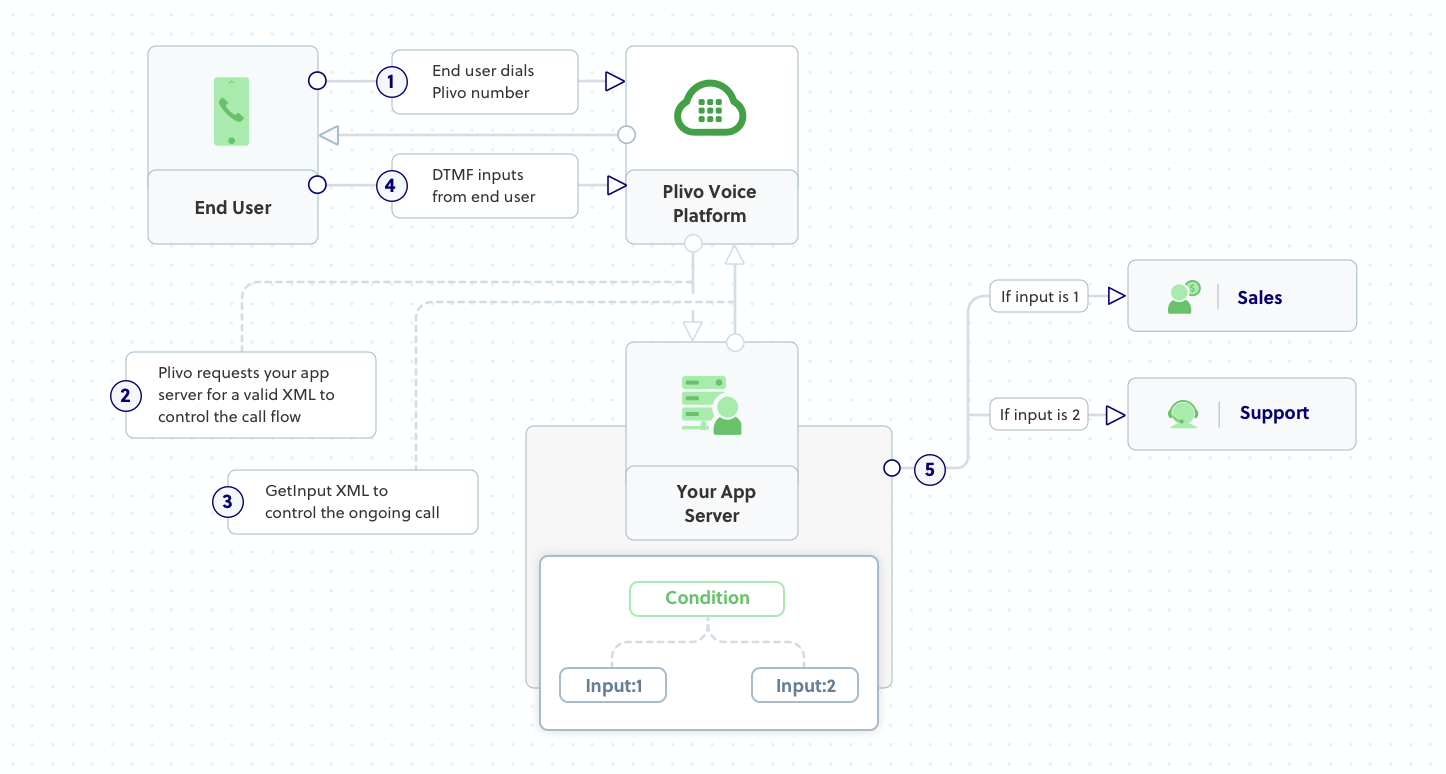

How it works
Prerequisites
To get started, you need a Plivo account — sign up with your work email address if you don’t have one already. You must have a voice-enabled Plivo phone number to receive incoming calls; you can rent numbers from the Numbers page of the Plivo console, or by using the Numbers API. If this is your first time using Plivo APIs, follow our instructions to set up a Ruby development environment and a web server and safely expose that server to the internet.Create a Rails controller to implement IVR
Change to the project directory and run this command to create a Rails controller for inbound calls.Add a route
Add a route for the inbound function in PlivoController class. Edit config/routes.rb and add these lines after the inbound route:Create a Plivo application
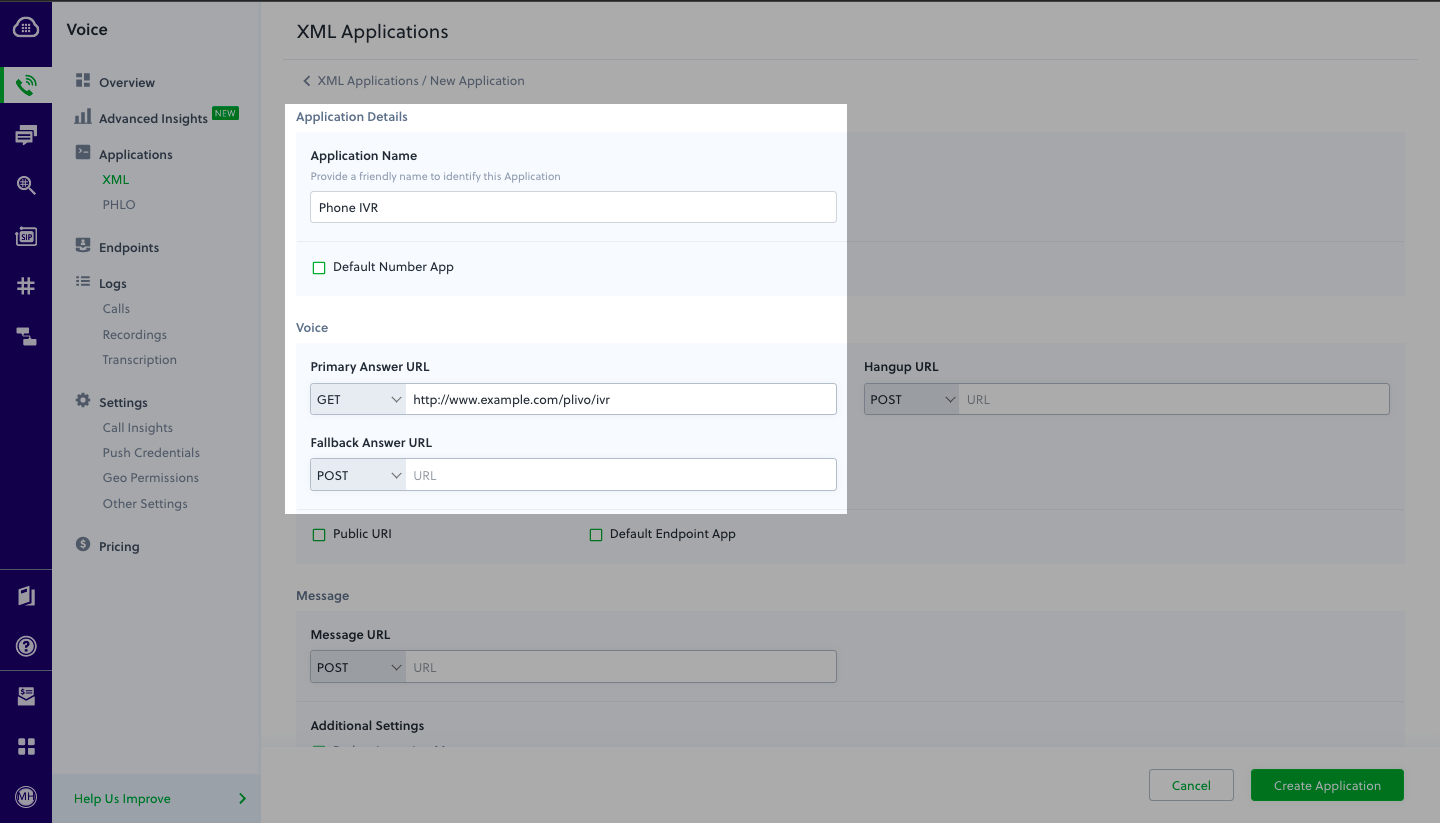
Associate the Rails controller you created with Plivo by creating a Plivo application. Visit Voice > Applications in the Plivo console and click on Add New Application, or use Plivo’s Application API.Give your application a name — we called oursPhone IVR. Enter the server URL you want to use (for example https://<yourdomain>.com/ivr/) in the Answer URL field and set the method to GET. Click Create Application to save your application.Assign a Plivo number to your application
Navigate to the Numbers page and select the phone number you want to use for this application.From the Application Type drop-down, selectXML Application.From the Plivo Application drop-down, select Phone IVR (the name we gave the application).Click Update Number to save.