

- Ruby Sinatra
- Ruby on Rails
Get Started with Ruby Using the Sinatra Framework
Sign up for a Plivo account
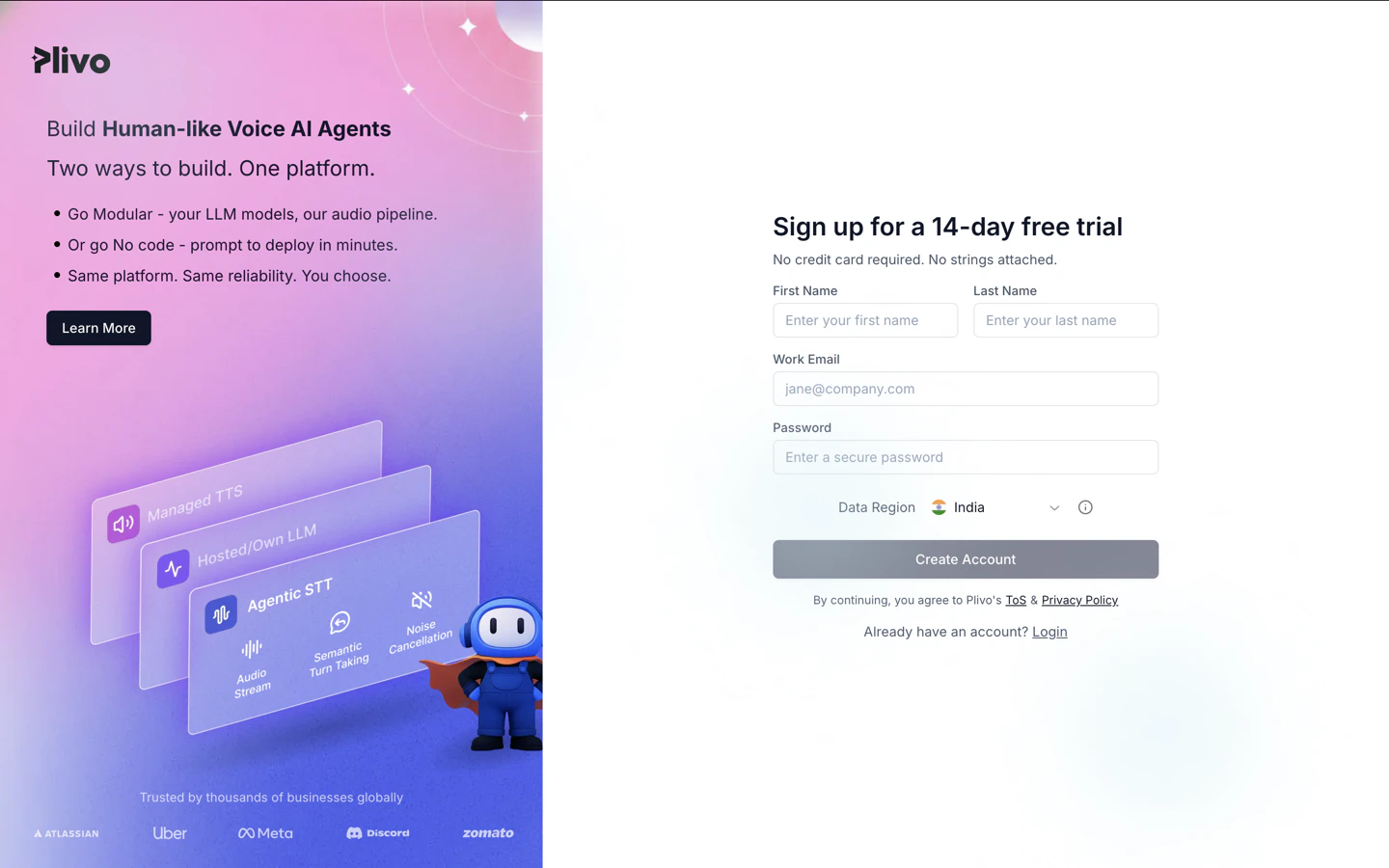
When you sign up with Plivo, we give you a free trial account and free credits to experiment with and learn about our services. You can add a number to your account to start testing the full range of our voice and SMS service features.Follow these steps to get a free trial account:- Sign up with your work email address.
- Check your inbox for an activation email message from Plivo. Click on the link in the message to activate your account.
- Enter your mobile number to complete the phone verification step.
Sign up with your work email address
- Using API
Install Ruby, Sinatra, and the Plivo Ruby SDK
You must set up and install Ruby, Sinatra, and Plivo’s Ruby SDK before you send your first SMS message.Install Ruby
Download and install Ruby from its official site.Install Sinatra
Install the Plivo Ruby SDK
Create a project directory and change into it.Send your first outbound SMS/MMS message
You must have a Plivo phone number to send messages to the US or Canada; you can rent a Plivo number from Phone Numbers > Buy Numbers on the Plivo console or via the Numbers API.Set up a Sinatra server
Create a file calledSendSMS.rb and paste into it this code.- SMS
- MMS
Note:
We recommend that you store your credentials in the
auth_id and auth_token environment variables to avoid the possibility of accidentally committing them to source control. If you do this, you can initialize the client with no arguments and Plivo will automatically fetch the values from the environment variables. You can use ENV to store environment variables and fetch them when initializing the client.Test
Save the file and run it.Receive your first inbound SMS/MMS message
To receive incoming messages, you must have a Plivo phone number that supports SMS; you can rent numbers from the Numbers page of the Plivo console or by using the Numbers API.Set up a Sinatra server
Create a file calledreceive_sms.rb and paste into it this code.- SMS
- MMS
Expose your local server to the internet
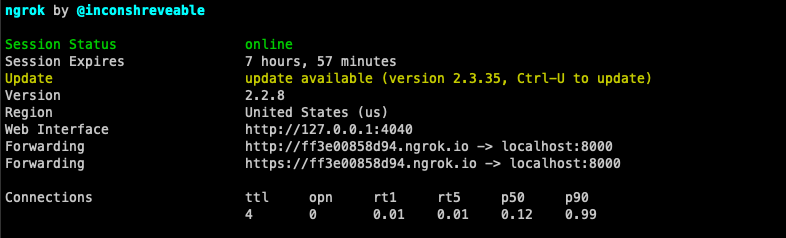
To receive incoming messages, your local server must connect with Plivo API services. For that, we recommend using ngrok, which exposes local servers running behind NATs and firewalls to the public internet over secure tunnels. Using ngrok, you can set webhooks that can talk to the Plivo server.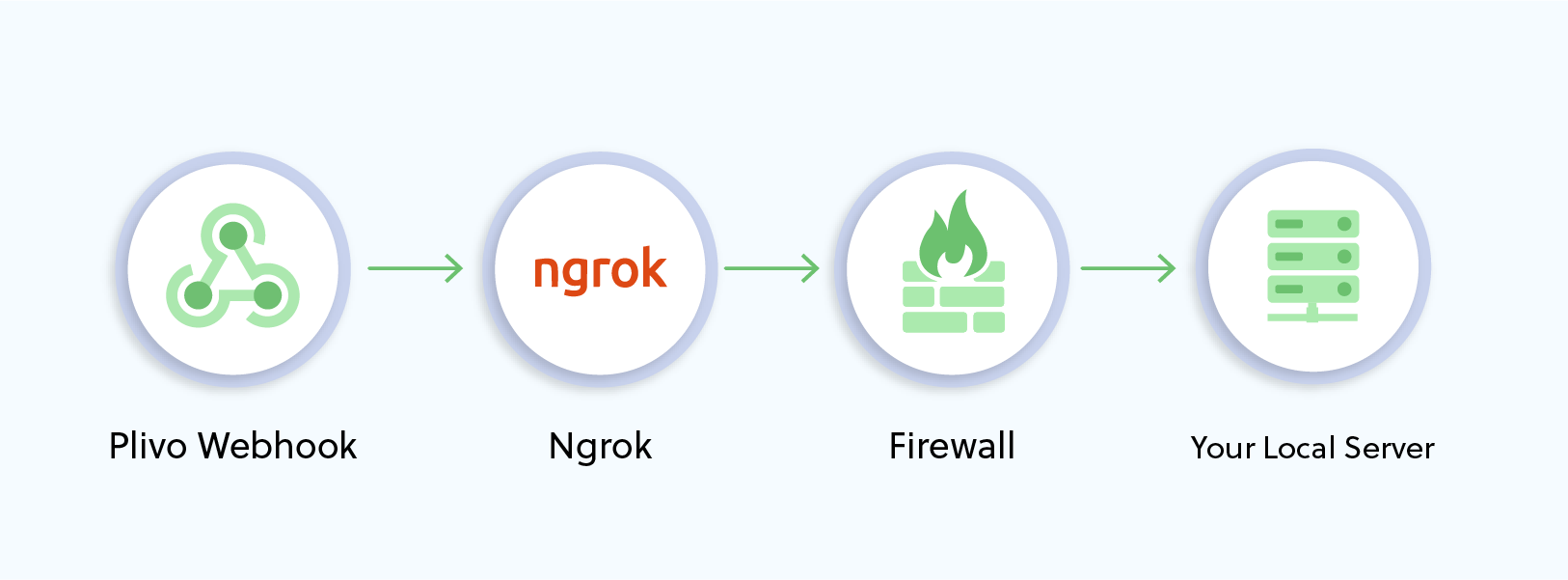
Create a Plivo application to receive messages
Associate the controller you created with Plivo by creating a Plivo application. Visiting Messaging > Applications and click Add New Application. You can also use Plivo’s Application API.Give your application a name — we called oursReceive SMS. Enter the server URL you want to use (for example https://<yourdomain>.com/receive_sms/) in the Message URL field and set the method to POST. Click Create Application to save your application.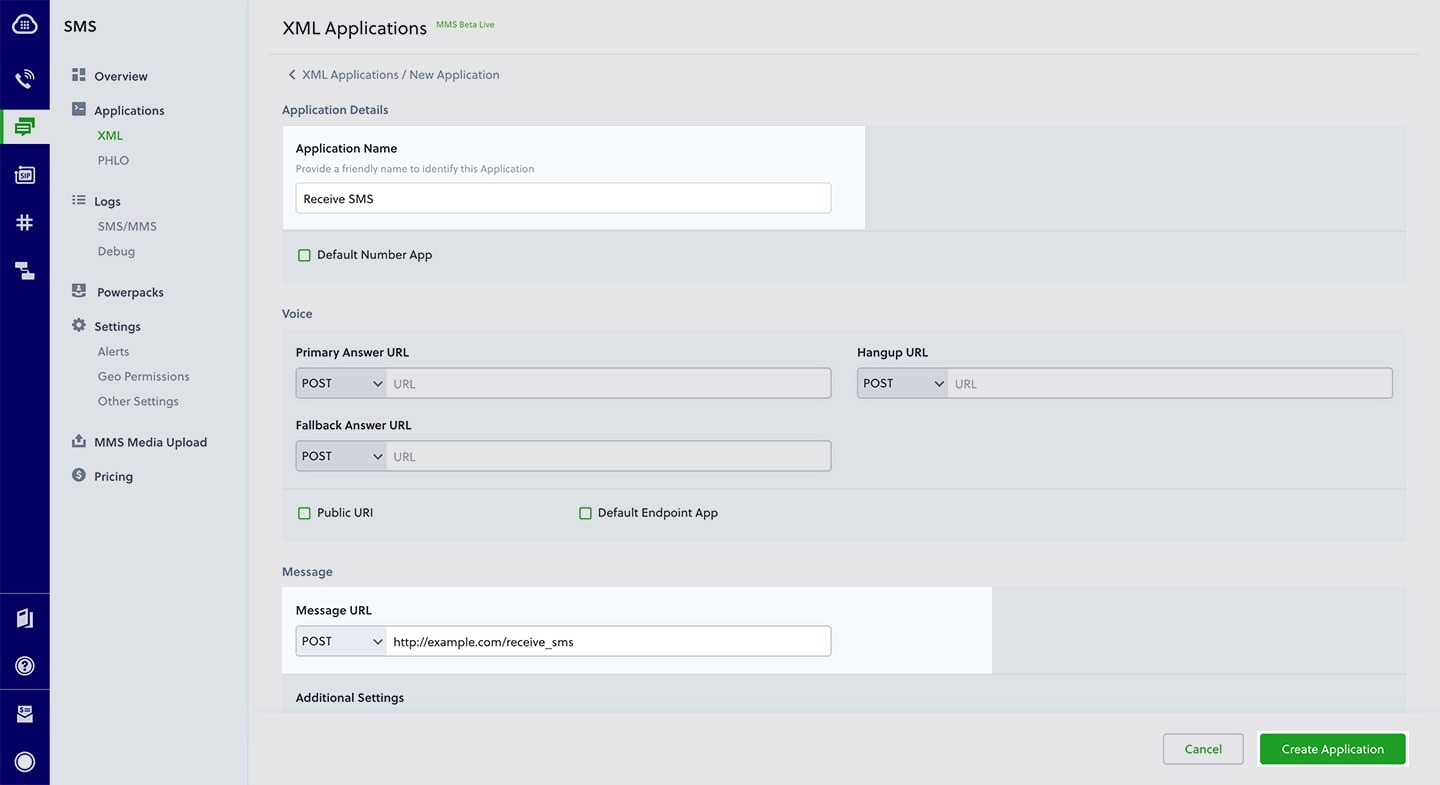
Assign a Plivo number to your application
Navigate to the Numbers page and select the phone number you want to use for this application.From the Application Type drop-down, selectXML Application.From the Plivo Application drop-down, select Receive SMS (the name we gave the application).Click Update Number to save.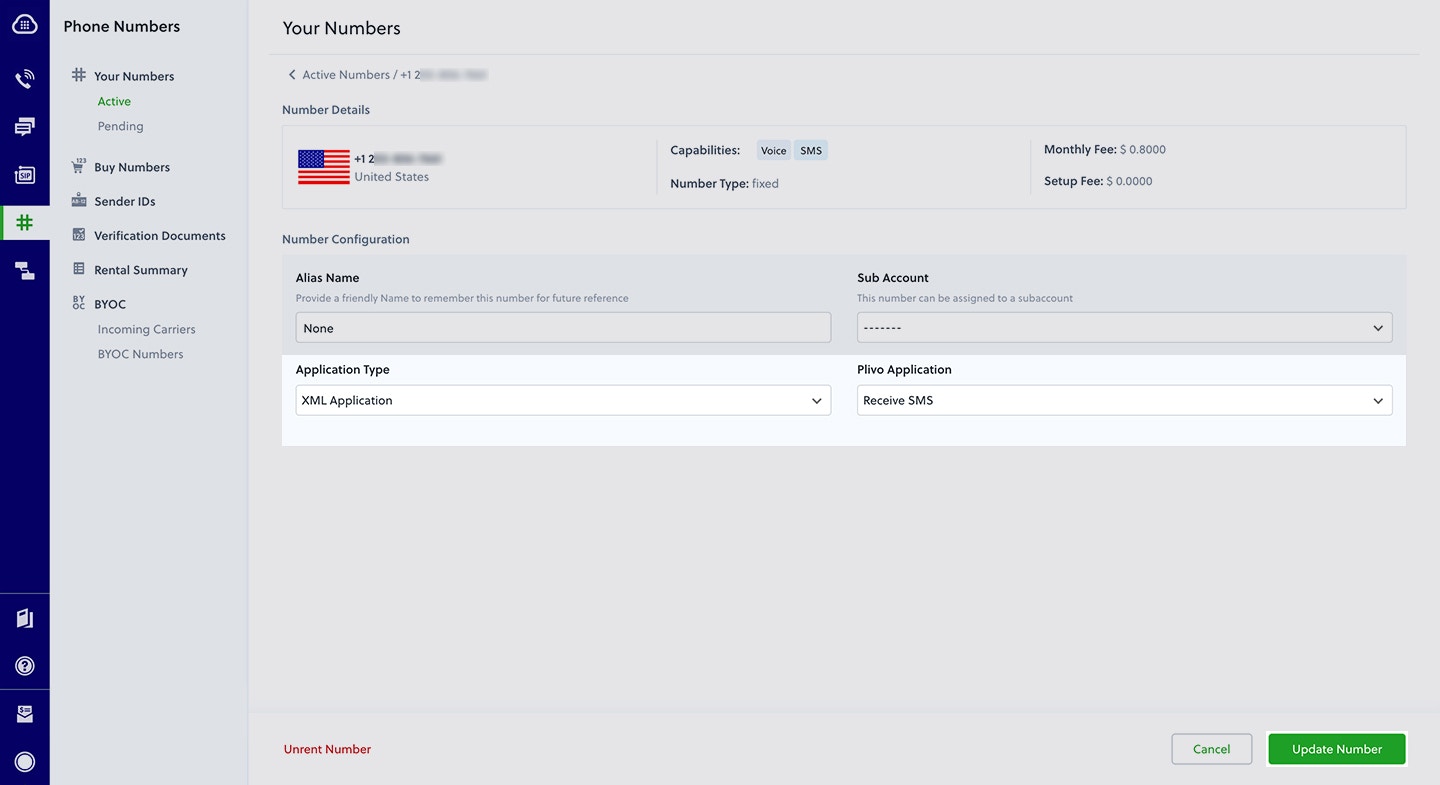
Test
Send a text message to the Plivo number you specified using any phone.Reply to an incoming SMS/MMS message
To receive incoming messages, you must have a Plivo phone number that supports SMS; you can rent numbers from the Numbers page of the Plivo console or by using the Numbers API.Set up a Sinatra server
Create a file calledreply_sms.rb and paste the following code.Create a Plivo application to reply to messages
Associate the controller you created with Plivo by creating a Plivo application. Visiting Messaging > Applications and click Add New Application. You can also use Plivo’s Application API.Give your application a name — we called oursReply Incoming SMS. Enter the server URL you want to use (for example http://<yourdomain>.com/replysms/) in the Message URL field and set the method to POST. Click Create Application to save your application.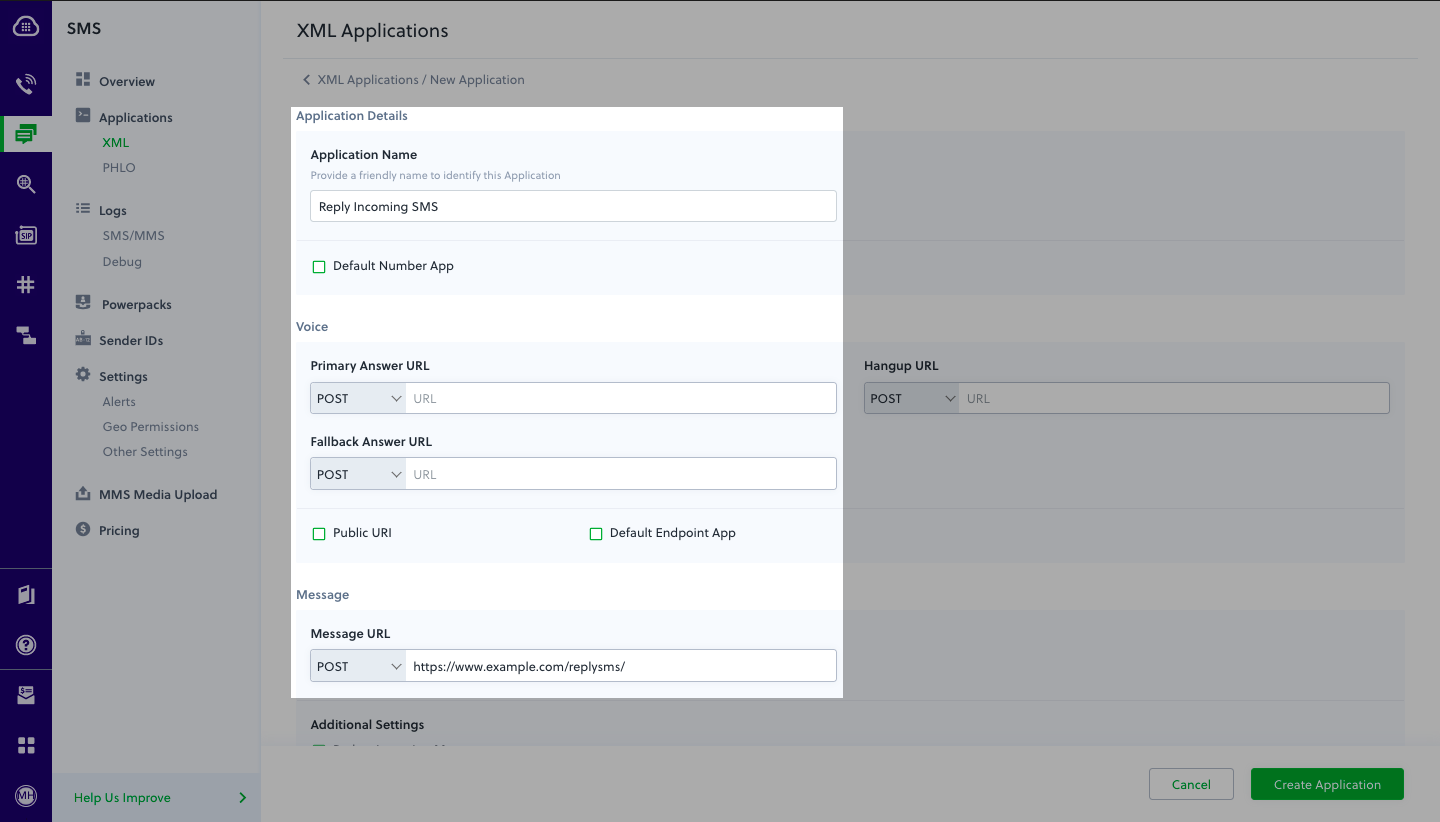
Assign a Plivo number to your application
Navigate to the Numbers page and select the phone number you want to use for this application.From the Application Type drop-down, selectXML Application.From the Plivo Application drop-down, select Reply Incoming SMS (the name we gave the application).Click Update Number to save.