> ## Documentation Index
> Fetch the complete documentation index at: https://plivo.com/docs/llms.txt
> Use this file to discover all available pages before exploring further.

# Set Up a .NET Dev Environment for PHLO

> Configure a .NET development environment to trigger PHLOs with Plivo

Using this guide, you can set up a development environment in five minutes to trigger a PHLO.

## Install .NET Framework and the Plivo NuGet package

To get started, install and set up .NET Framework 4.6 or higher and Plivo’s .NET SDK.

### Install .NET Framework

<table>
  <tbody>
    <thead>
      <tr>
        <th>Operating System</th>
        <th>Instructions</th>
      </tr>
    </thead>

    <tr>
      <td>macOS and Linux</td>
      <td>To see if you already have .NET Framework installed, run the command <code>dotnet --version</code> in a terminal window. If you don’t have it, <a href="https://dotnet.microsoft.com/download" rel="nofollow">download and install it</a>.</td>
    </tr>

    <tr>
      <td>Windows</td>
      <td>To install .NET Framework on Windows, follow <a href="https://dotnet.microsoft.com/download" rel="nofollow">these instructions</a>.</td>
    </tr>
  </tbody>
</table>

### Install the Plivo .NET SDK using Visual Studio

To install the Plivo .NET SDK:

* Create a new project in Visual Studio.

<Frame>
  <img src="https://mintlify.s3.us-west-1.amazonaws.com/plivo/images/dotnet/step1.jpg" alt="Create New Project" />
</Frame>

* Choose a template for the new project.

<Frame>
  <img src="https://mintlify.s3.us-west-1.amazonaws.com/plivo/images/dotnet/step2.jpg" alt="Choose Template" />
</Frame>

* Install the Plivo NuGet package.

<Frame>
  <img src="https://mintlify.s3.us-west-1.amazonaws.com/plivo/images/dotnet/step4.jpg" alt="Manage Nuget packages" />
</Frame>

<Frame>
  <img src="https://mintlify.s3.us-west-1.amazonaws.com/plivo/images/dotnet/step5.jpg" alt="Select Plivo Nuget package" />
</Frame>

## Trigger the PHLO

Create and configure a PHLO, then integrate the PHLO into your application workflow by making an API request to trigger the PHLO with the required payload.

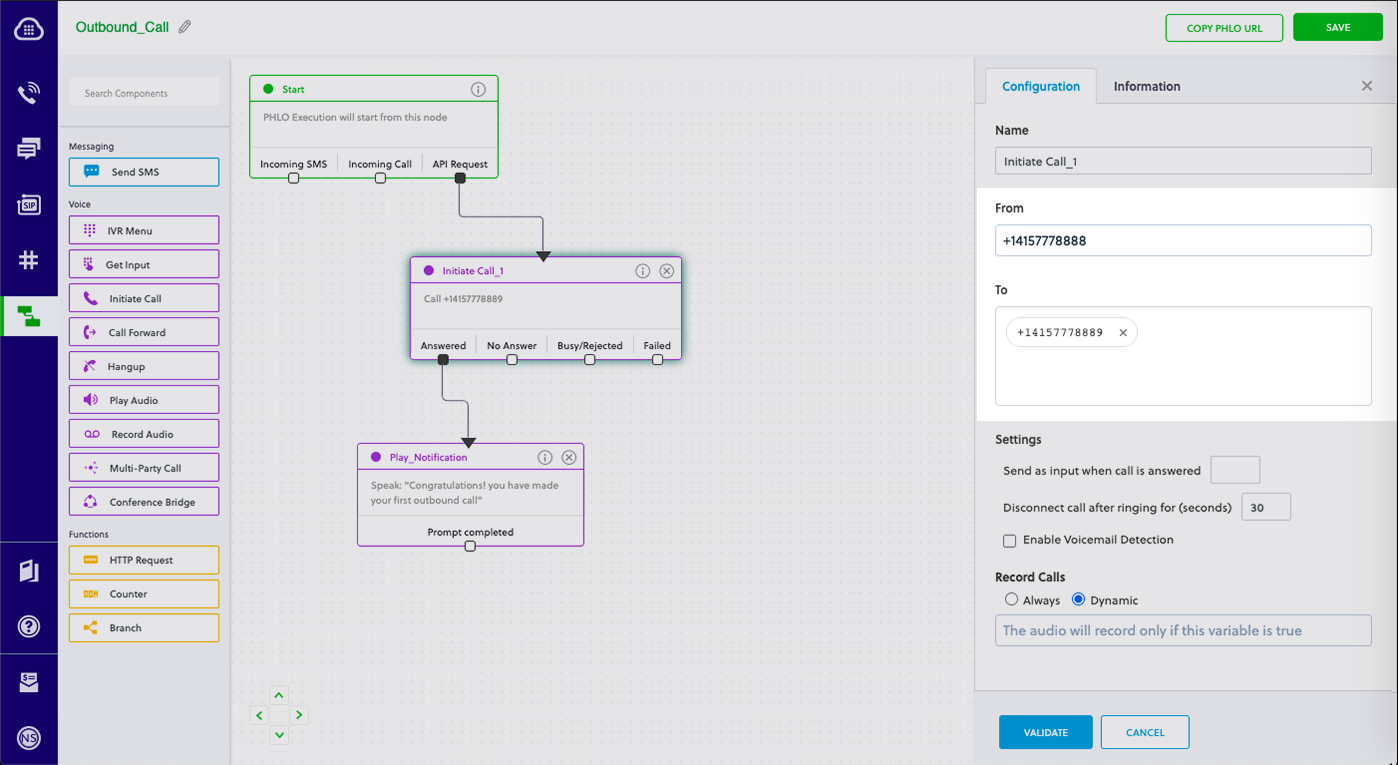
You can run a PHLO with static payload values by entering specific values in fields like `from` and `to` on the PHLO console.
<Frame>
  <img src="https://mintcdn.com/plivo/sqGJ0ONkT5kTuesy/images/static_payload.png?fit=max&auto=format&n=sqGJ0ONkT5kTuesy&q=85&s=e34e3011bffc239aa02054403be0e79a" alt="With Static Payload" width="1398" height="765" data-path="images/static_payload.png" />
</Frame>

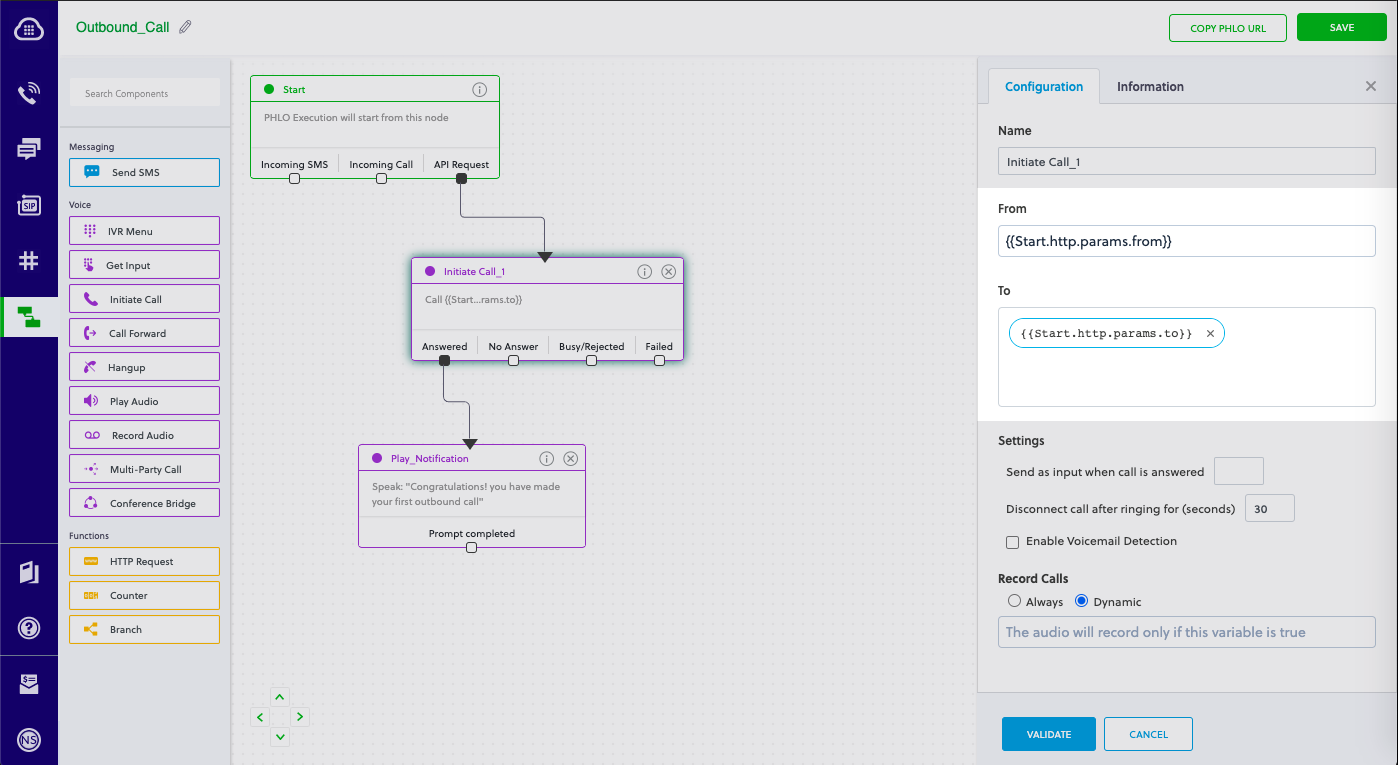
To deliver a dynamic payload instead of a static one, define the payload keys as [Liquid](https://shopify.github.io/liquid/) templates on the PHLO console and pass the values at runtime.
<Frame>
  <img src="https://mintcdn.com/plivo/2OFvQXVNT3srKLUy/images/dynamic_payload.png?fit=max&auto=format&n=2OFvQXVNT3srKLUy&q=85&s=9af2698b7d971dfa9ad451e66d038256" alt="With Dynamic Payload" width="1398" height="765" data-path="images/dynamic_payload.png" />
</Frame>

To trigger a PHLO, open the Program.cs file in the CS project and paste into it the code below for either a static or dynamic payload.

### Static payload

```cs theme={null}
using System;
using System.Collections.Generic;
using Plivo;

namespace test_PHLO
{
    class Program
    {
        public static void Main(string[] args)
        {
            var phloClient = new PhloApi("<auth_id>", "<auth_token>");
            var phloID = "<phlo_id>"; 
            var phlo = phloClient.Phlo.Get(phloID); 
            var data = new Dictionary<string, object>
            {
                { "from", "<Caller_ID>" },
                { "to", "<Destination_Number>" }

            };  
            Console.WriteLine(phlo.Run(data));
        }
    }

}
```

### Dynamic payload

```cs theme={null}
using System;
using Plivo;

namespace test_PHLO
{
    class Program
    {
        public static void Main(string[] args)
        {
            var phloClient = new PhloApi("<auth_id>", "<auth_token>"); 
            var phloID = "<phlo_id>"; 
            var phlo = phloClient.Phlo.Get(phloID);   
            Console.WriteLine(phlo.Run());
        }
    }
}
```

<Note>
  <strong>Note:</strong>
  <ul><li>Replace the placeholders `&lt;auth_id>` and `&lt;auth_token>` with your authentication credentials, which you can find on the overview page of the <a href="https://cx.plivo.com/home">Plivo console</a>.</li><li>We recommend that you store your credentials in the `auth_id` and `auth_token` environment variables to avoid the possibility of accidentally committing them to source control. If you do this, you can initialize the client with no arguments and it will automatically fetch the values from the environment variables.</li><li>You can use the <a href="https://docs.microsoft.com/en-us/dotnet/api/system.environment.setenvironmentvariable?view=netcore-3.1" rel="nofollow">Environment.SetEnvironmentVariable method</a> to store environment variables, and fetch them using the <a href="https://docs.microsoft.com/en-us/dotnet/api/system.environment.getenvironmentvariable?view=netcore-3.1" rel="nofollow">Environment.GetEnvironmentVariable method</a> while initializing the client. </li>  <li>Replace the placeholder `&lt;phlo_id>` with the PHLO\_ID from the <a href="https://cx.plivo.com/agents">PHLO list</a> screen of the Plivo console.</li><li>Replace the placeholder `&lt;Caller_ID>` with a phone number you’ve purchased, and `&lt;Destination_Number>` with the phone number you’ll be calling. Both phone numbers should be in <a href="https://en.wikipedia.org/wiki/E.164" rel="nofollow">E.164 format</a>.</li></ul>
</Note>

Save the file and run the code from the Visual Studio IDE.

<Note>
  <strong>Note:</strong> If you’re using a free trial account you must verify (sandbox) your destination number, unless you use the phone number you used for signup verification as your destination number. We require this as a security measure to avoid abuse. To sandbox a number in a Plivo trial account, visit Phone Numbers > <a href="https://cx.plivo.com/home">Sandbox Numbers</a> and click on <strong>Add Sandbox Number</strong>.
</Note>
