> ## Documentation Index
> Fetch the complete documentation index at: https://plivo.com/docs/llms.txt
> Use this file to discover all available pages before exploring further.
# WhatsApp Business Account Onboarding
> Create and configure a WhatsApp Business Account through Plivo console
Once you have fulfilled the necessary prerequisites, create a WABA from within [Plivo Console](https://cx.plivo.com/whatsapp/numbers) via Meta’s Embedded Signup flow. As a part of this flow, you will:
* Register your business phone number to the WABA you are creating. The phone number that you wish to register should be able to receive a one-time password (OTP) sent via text message or a voice call. You can send messages to your customers using this number and the same number will be visible to them on WhatsApp. You can rent a phone number from Plivo (in the countries where Plivo offers this option) or you can bring your own number. For more information, visit [Meta’s guidelines](https://developers.facebook.com/docs/whatsapp/cloud-api/phone-numbers) for business phone numbers. If you have registered a number with a different WhatsApp solution provider, you can migrate that number under the new WABA you create with Plivo. Detailed requirements for this migration are listed [here](https://developers.facebook.com/docs/whatsapp/business-management-api/guides/migrate-phone-to-different-waba/#requirements).
* Set your WhatsApp display name. Review display name guidelines [here](https://www.facebook.com/business/help/757569725593362 "here")
* Providing necessary permissions to Plivo to function as your WhatsApp solutions partner.
You do not need to worry about adding a payment method to your WABA as Plivo will manage this and you will only be billed on Plivo’s platform.
The detailed explanation of embedded sign up is explained [here](https://developers.facebook.com/docs/whatsapp/embedded-signup/#the-new-embedded-signup-flow).
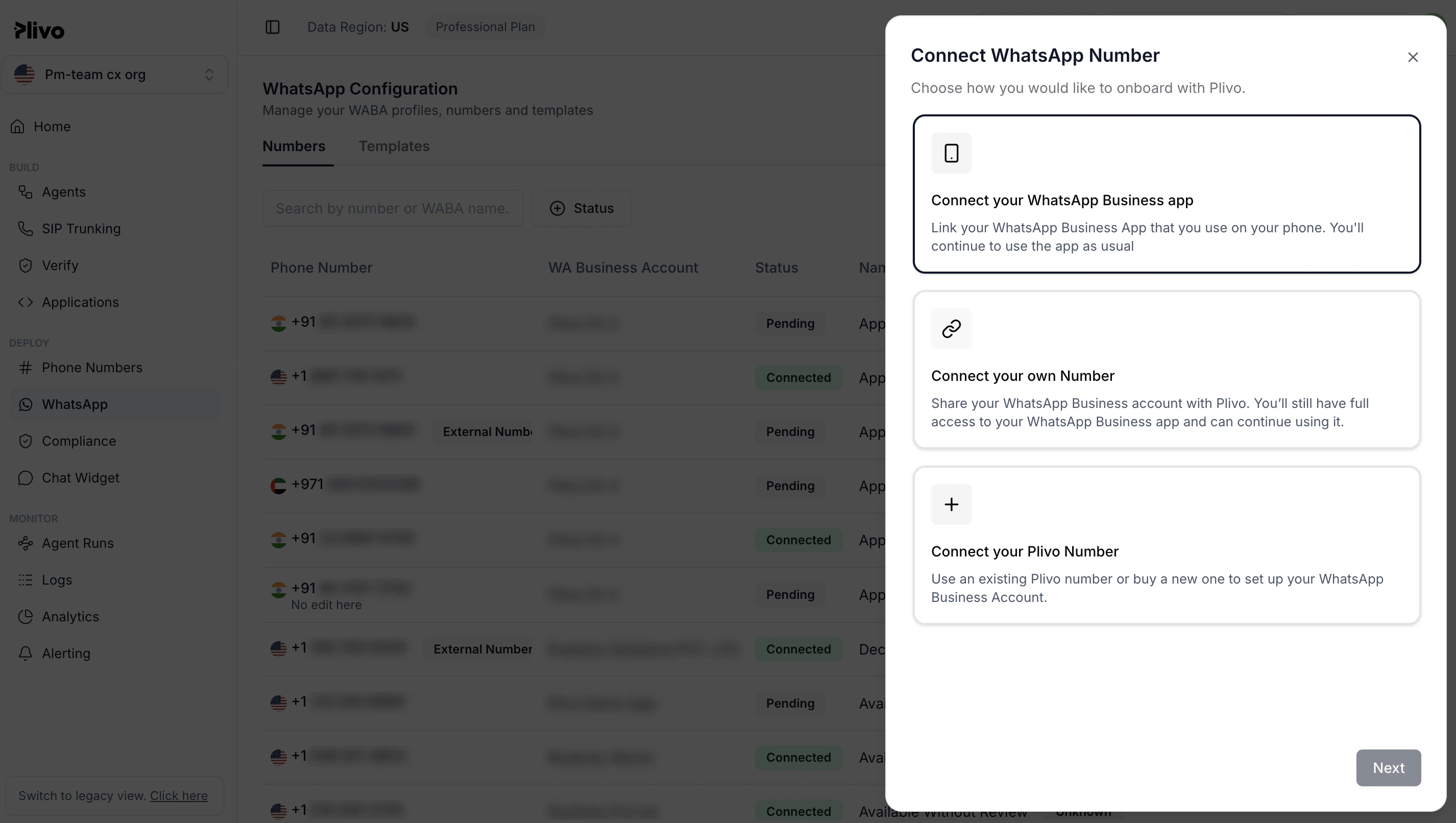 If you don’t see this menu, your account is not enabled for WhatsApp. [Contact Plivo support](https://support.plivo.com/hc/en-us/requests/new) or your customer success manager to resolve this issue.