> ## Documentation Index
> Fetch the complete documentation index at: https://plivo.com/docs/llms.txt
> Use this file to discover all available pages before exploring further.
# WhatsApp Business Account Verification
> Verify your WhatsApp Business Account is linked with Plivo
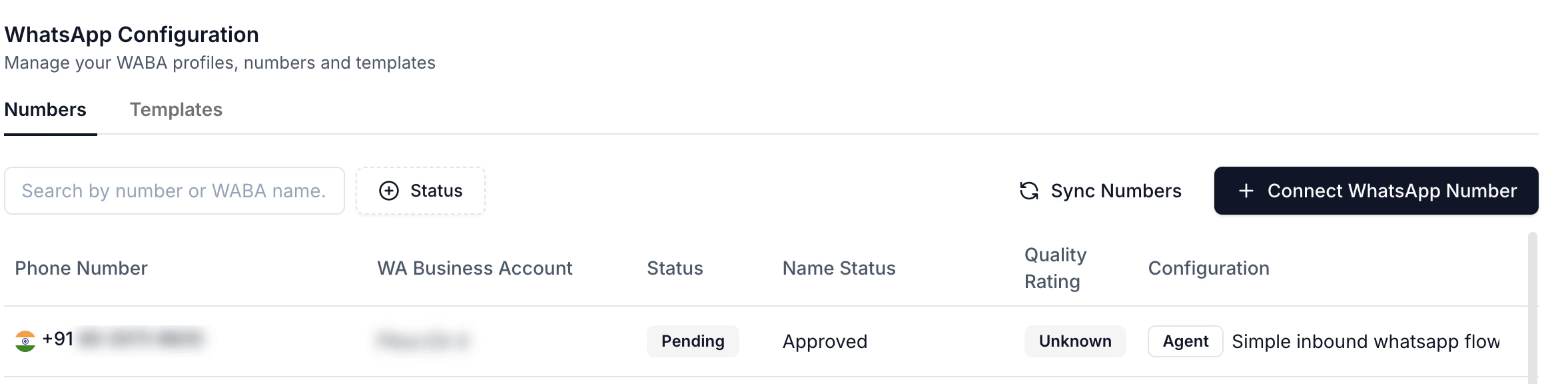
Once you’ve linked your WABA account with Plivo, it will be displayed on the Plivo console.
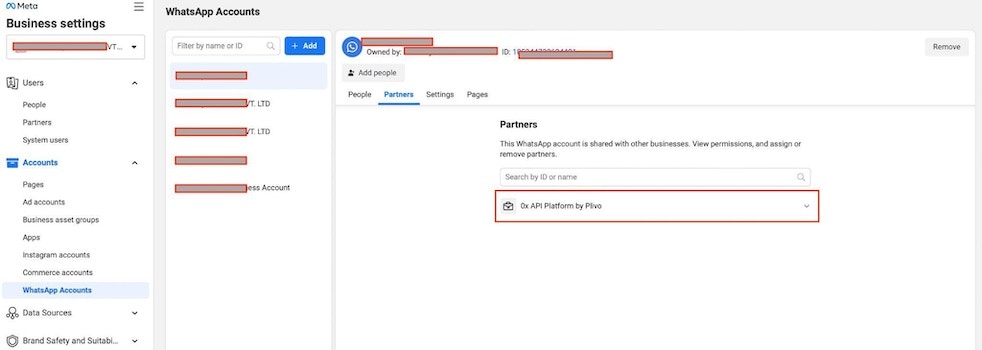
 Verify successful onboarding by navigating to your [Meta Business Account](https://business.facebook.com/settings/whatsapp-business-accounts/) and selecting your Meta account. Under *Business Settings*, click on *WhatsApp Accounts*. Go to the *Partners* tab. You should see Plivo on your Partners list.
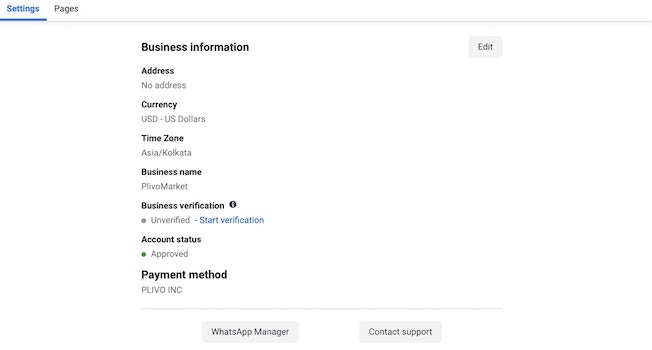
 Next, click on the *Settings* tab. You should see ‘PLIVO INC’ listed under payment method.
 If you click [WhatsApp Manager](https://business.facebook.com/wa/manage/phone-numbers/), the number that was onboarded should appear as `connected`. Read more about [managing WhatsApp phone numbers](/messaging/concepts/whatsapp/manage-whatsapp-phonenumbers/).
You can now create WhatsApp templates. Once you already have approved templates, you can [start messaging](/messaging/use-cases/whatsapp/getting-started/send-whatsapp-template/node/).
If you click [WhatsApp Manager](https://business.facebook.com/wa/manage/phone-numbers/), the number that was onboarded should appear as `connected`. Read more about [managing WhatsApp phone numbers](/messaging/concepts/whatsapp/manage-whatsapp-phonenumbers/).
You can now create WhatsApp templates. Once you already have approved templates, you can [start messaging](/messaging/use-cases/whatsapp/getting-started/send-whatsapp-template/node/).